.svg)



Codex CLI is OpenAI's open-source coding agent for the terminal: you describe a task, and it edits the code and runs the commands for you. There are two ways to get it running. You can install Codex CLI on your own machine with one command. Or you can run Codex in the cloud on Atomic Bot: there's nothing to install, and Codex keeps working 24/7. This guide covers every common way to install Codex CLI, from OpenAI's installer to npm and Homebrew, plus fixes for the usual errors.
Updated in October 2026 for Codex CLI 0.160.
🎯 Quick answer
Installing Codex CLI takes three steps:
- Run OpenAI's installer: one command in Terminal on a Mac or Linux machine, or in PowerShell on Windows. You'll find it in the section for your system below.
- Open a new terminal window and check that Codex shows its version number.
- Start Codex and sign in with your ChatGPT account or an OpenAI API key.
Or skip the install: launch Codex in one click on Atomic Bot. It's ready in a minute and keeps running 24/7 while your computer is off.
The sections below cover npm, Homebrew and other ways to install, plus fixes if something doesn't work.
What Is OpenAI Codex CLI?
OpenAI Codex CLI is a coding agent from OpenAI that works in the terminal. It takes a task you describe in plain words and does it in your project: it edits the code and runs commands such as tests. Codex CLI is open source and written in Rust, so OpenAI's installer doesn't need Node.js.
Codex CLI runs on the machine where you install it and works only while that machine is on. The model behind it runs on OpenAI's servers by default, so to use Codex, you need a paid ChatGPT plan (Plus or higher) or an OpenAI API key.
Codex App vs Codex CLI: What's the Difference?
Codex CLI and the Codex app are the same agent. Codex CLI works in the terminal, and the Codex app works in a regular window inside the ChatGPT desktop app. There's also an extension for VS Code and editors based on it, such as Cursor. All of them sign in with the same ChatGPT account. On the Free and Go plans Codex works only in the desktop app, and the CLI and the IDE extension need Plus or higher.
This guide is about Codex CLI, the terminal version. And if you're still choosing between Codex and Claude Code, read our Codex vs Claude Code comparison.
OpenAI Codex CLI Install Methods Compared
The methods differ in what the machine needs first and in how you update later.
The installer, npm, Homebrew and WinGet all install the same Codex CLI from OpenAI's official releases, so pick the one that fits the tools you already have. If you use npm, Homebrew or WinGet, install Codex with it. Everyone else can use OpenAI's installer. To skip the install and keep Codex running with your computer off, run it on Atomic Bot.
How to Install Codex CLI on Mac and Linux
OpenAI's installer is a short script that downloads Codex and sets up the codex command for you. Open Terminal, the app for typing commands, and run:
curl -fsSL https://chatgpt.com/codex/install.sh | shThen open a new terminal window and run codex --version. If it shows a version number, Codex is installed: type codex and sign in. The installer works on Apple Silicon and Intel Macs, and on x86_64 and ARM Linux machines. Looking for the Codex app instead? It's part of the ChatGPT desktop app, which on Linux is still in preview.
Install Codex CLI with Homebrew
Homebrew is a free package manager for Mac and Linux: it installs programs from the terminal and updates them with one command. If you already use it, run brew install --cask codex instead (plain brew install codex works too).
Install Codex CLI on Ubuntu and Debian
Ubuntu and Debian are two of the most popular versions of Linux. Ubuntu is built on Debian, so Codex installs the same way on both. Before running the installer, add two small tools: curl, which downloads the installer, and bubblewrap, which keeps Codex's commands inside your project folder:
sudo apt update
sudo apt install curl bubblewrap
curl -fsSL https://chatgpt.com/codex/install.sh | sh
Install the Codex CLI Binary from GitHub
A binary is the Codex program itself, ready to run. OpenAI publishes it on GitHub with every release, so if you'd rather not run a script from the internet, you can download it and put it in place yourself. On an ARM machine, replace x86_64 with aarch64 in both names:
curl -L -o codex.tar.gz https://github.com/openai/codex/releases/latest/download/codex-x86_64-unknown-linux-musl.tar.gz
tar -xzf codex.tar.gz
mkdir -p ~/.local/bin
mv codex-x86_64-unknown-linux-musl ~/.local/bin/codex
How to Install Codex CLI on Windows
PowerShell is the command line built into Windows, an app where you type commands instead of clicking. OpenAI's installer for Windows runs in it: it downloads Codex and sets up the codex command. Open PowerShell from the Start menu and run:
powershell -ExecutionPolicy ByPass -c "irm https://chatgpt.com/codex/install.ps1 | iex"Then open a new PowerShell window and run codex --version. If it shows a version number, Codex is installed: type codex and sign in. You don't need admin rights or Linux. Looking for the Codex app instead? On Windows it's part of the ChatGPT desktop app.
Install Codex CLI with WinGet
WinGet is Microsoft's package manager: it installs and updates programs from the command line. It comes with Windows 11 and recent versions of Windows 10. To check that you have it, run winget --version in PowerShell.
To install Codex with WinGet, run winget install -e --id OpenAI.Codex. The -e --id part makes WinGet install exactly the package with this ID, the one OpenAI publishes. Then open a new PowerShell window and type codex. To update it later, run winget upgrade --id OpenAI.Codex.
Install Codex CLI in WSL2
WSL (Windows Subsystem for Linux) is a part of Windows that runs a real Linux system next to your usual Windows apps. Developers use it when their projects and tools are made for Linux. Inside WSL, Codex installs the same way as on Ubuntu: open the Ubuntu app and follow the Ubuntu and Debian steps above. To set up WSL, run wsl --install in PowerShell as administrator and restart.
Install Codex CLI with npm
Node.js is a program that lets your computer run code written in JavaScript, and many developer tools are built on it. It comes with npm, a package manager that installs those tools from the terminal. To check whether you have Node.js, run node -v. If it shows v16 or higher, this command installs Codex on Mac, Windows and Linux:
npm install -g @openai/codexThe short form npm i -g @openai/codex works too. Type the name exactly: plain codex on npm is a different package that has nothing to do with OpenAI.
How to Use OpenAI Codex CLI in the Terminal
Open a terminal in your project folder, type codex and describe the task in your own words. If Codex asks you to sign in again, run codex login. Four commands make the first sessions easier.
Run /init once in a new project. Codex creates an AGENTS.md file where you write the project's rules, such as how to run the tests or which folders to leave alone. Codex reads this file at the start of every session, so you don't have to repeat the rules in each chat. We explain how agents remember rules like these in our guide to AI agent memory.
Type /permissions to set what Codex can do without asking. By default it works inside the project folder and stops to ask before going beyond it, for example to use the internet. Use /model to switch to another model mid-chat.
codex exec "your task" runs one task without the chat window, so you can call Codex from a script. Before a bigger task, commit your work with Git (the tool that tracks changes in code), so you can undo anything Codex changes.
Codex CLI Install Errors and Fixes
If the Codex install fails or something seems wrong, run codex doctor first: it checks the install and sign-in and tells you what's wrong. The usual errors and their fixes:
On Ubuntu 24.04 the sandbox warning can stay even with bubblewrap installed. OpenAI's sandbox docs have a short fix for it.
How to Update or Uninstall Codex CLI
To update Codex, run codex update: it detects how you installed Codex and runs the matching update. On WinGet, use winget upgrade --id OpenAI.Codex instead.
To uninstall Codex, remove it the same way you installed it:
To remove your settings and history as well, delete the .codex folder in your home directory.
How to Run Codex CLI in the Cloud
To run Codex CLI in the cloud, you need a machine that stays on all the time, usually a VPS (a virtual server you rent). You can install Codex on it with the Linux steps above. OpenAI also has Codex cloud, included in ChatGPT Plus and higher, where each task runs in a separate workspace. Or you can run Codex on Atomic Bot.
Atomic Bot is a cloud platform that runs AI agents, Codex among them, on dedicated servers. Codex there gets its own VPS that stays on 24/7, so it keeps working when your computer is off. There's nothing to install: you sign up at atomicbot.ai/codex with any email, pick Codex, and it opens in your browser within a minute.
Codex on Atomic Bot connects to GitHub and works with your repositories and pull requests. It also has connectors for 100+ apps, such as Jira and Linear for tasks or Slack and Notion for team chats and docs. Each one connects in a couple of clicks. If Codex stops, it restarts on its own in under 30 seconds. Each instance is isolated and encrypted.
Codex can run on any of 100+ models by OpenAI, Anthropic, Google, Qwen and other labs, and the price per million tokens is shown next to each one. It uses the inference credits included in your plan, or you can bring your own API key (BYOK).
Atomic Bot has three plans: Base for $19 a month, Pro for $39 and Max for $79. They include $5, $10 and $20 of inference credits every month, and you can cancel any month. Once Codex is running, a second agent of your choice is free for the first month.
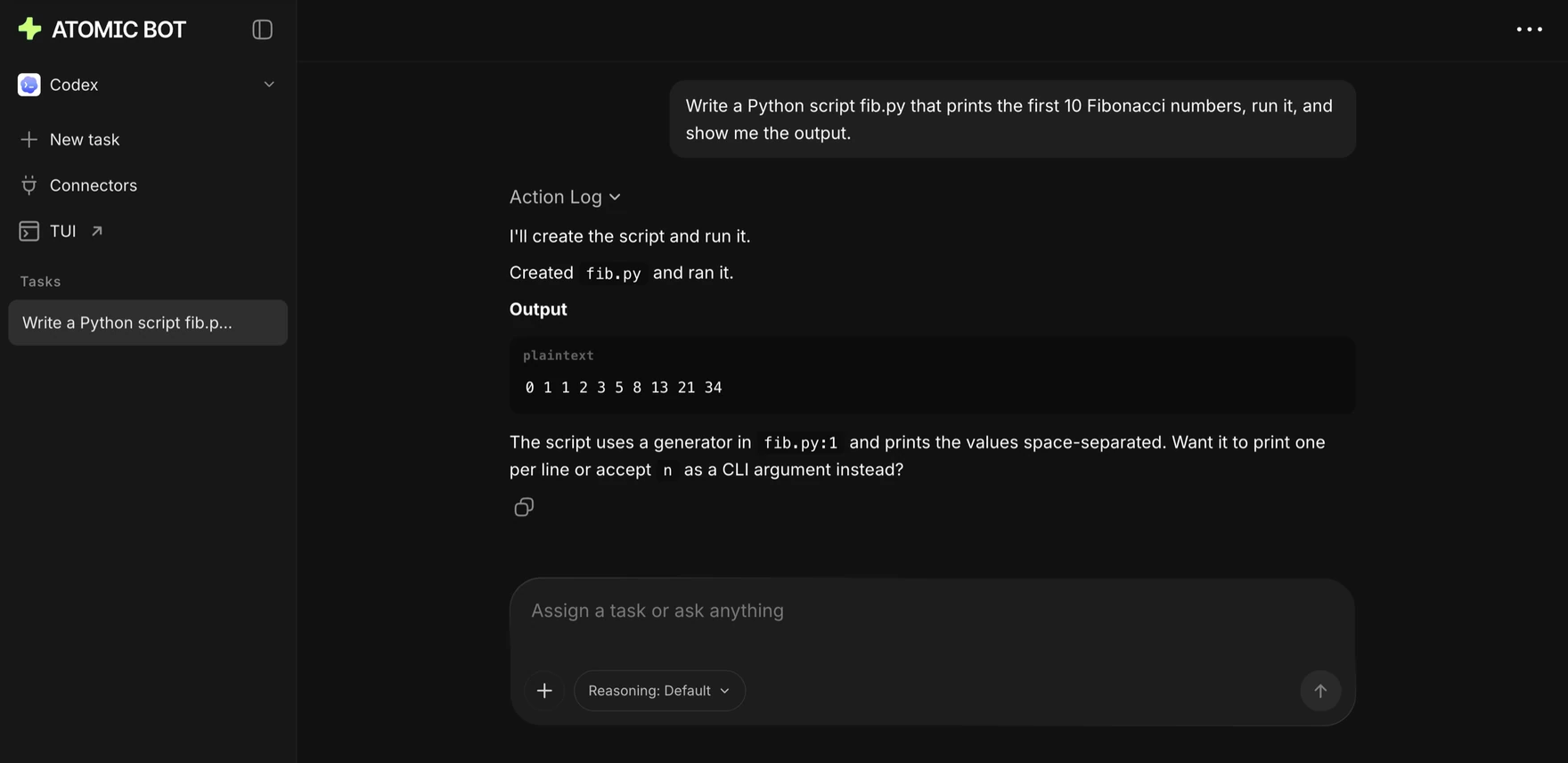
Best for: people who want Codex running 24/7 without setting up and maintaining a server.
FAQ
Is Codex CLI free?
Codex CLI itself is free and open source. To use it, you need ChatGPT Plus or higher, or an OpenAI API key billed by usage.
Is there a Codex app for Mac, Windows and Linux?
Yes. The Codex app is part of the ChatGPT desktop app: you download ChatGPT for your system and open Codex inside it. It's out on Mac and Windows, and on Linux it's in preview.
How do I log in to Codex CLI?
Start Codex and sign in with your ChatGPT account: Codex opens the sign-in page in your browser. The CLI needs ChatGPT Plus or a higher plan. You can sign in with an OpenAI API key instead.
Can Codex CLI work with models other than OpenAI's?
Yes. Codex CLI can connect to other model providers through its settings file, with an API key from each provider.
Can I run Codex on a VPS?
Yes. Install Codex with the Linux steps above and sign in with an OpenAI API key. On Atomic Bot, Codex gets its own VPS that's already set up.
Get started
Atomic Bot keeps Codex running in the cloud 24/7, with updates and restarts handled for you, from $19 a month with $5 of inference credits included.
To run Codex CLI in the cloud, sign up and pick Codex. No terminal, and you can cancel any month.