.svg)


🎯 Quick Answer
OpenClaw without skills is like a smartphone with no apps installed — technically functional, practically useless. The nine skills below cover email, calendar, web search, smart home, and notes, which is everything a non-technical user actually needs in the first month.
Still not sure which model to use for running OpenClaw on your setup? → See our complete guide to the best local LLMs in 2026.
If you're using Atomic Bot, most of these are already pre-installed and one click away in the skills menu. If you're running a manual CLI install, you'll need ClawHub commands for each one.
🤔 What Are OpenClaw Skills?
Skills are add-ons that give OpenClaw new abilities. The easiest way to think about them is as apps for your AI agent: without skills, OpenClaw can only chat, but with skills it can check your Gmail, search the web, summarize a 40-page PDF, or turn off your bedroom lights.
Each skill is a small package of instructions that teaches the agent how to use a specific tool or API. You install it once, and from then on the agent decides on its own when to use it — you don't have to remember commands or trigger it manually.
The OpenClaw community has published more than 5,400 skills as of early 2026, and the vast majority are free and open-source. Some skills connect to paid APIs (search engines being the most common case), but many cost nothing at all to run.
🛠️ How to Install OpenClaw Skills
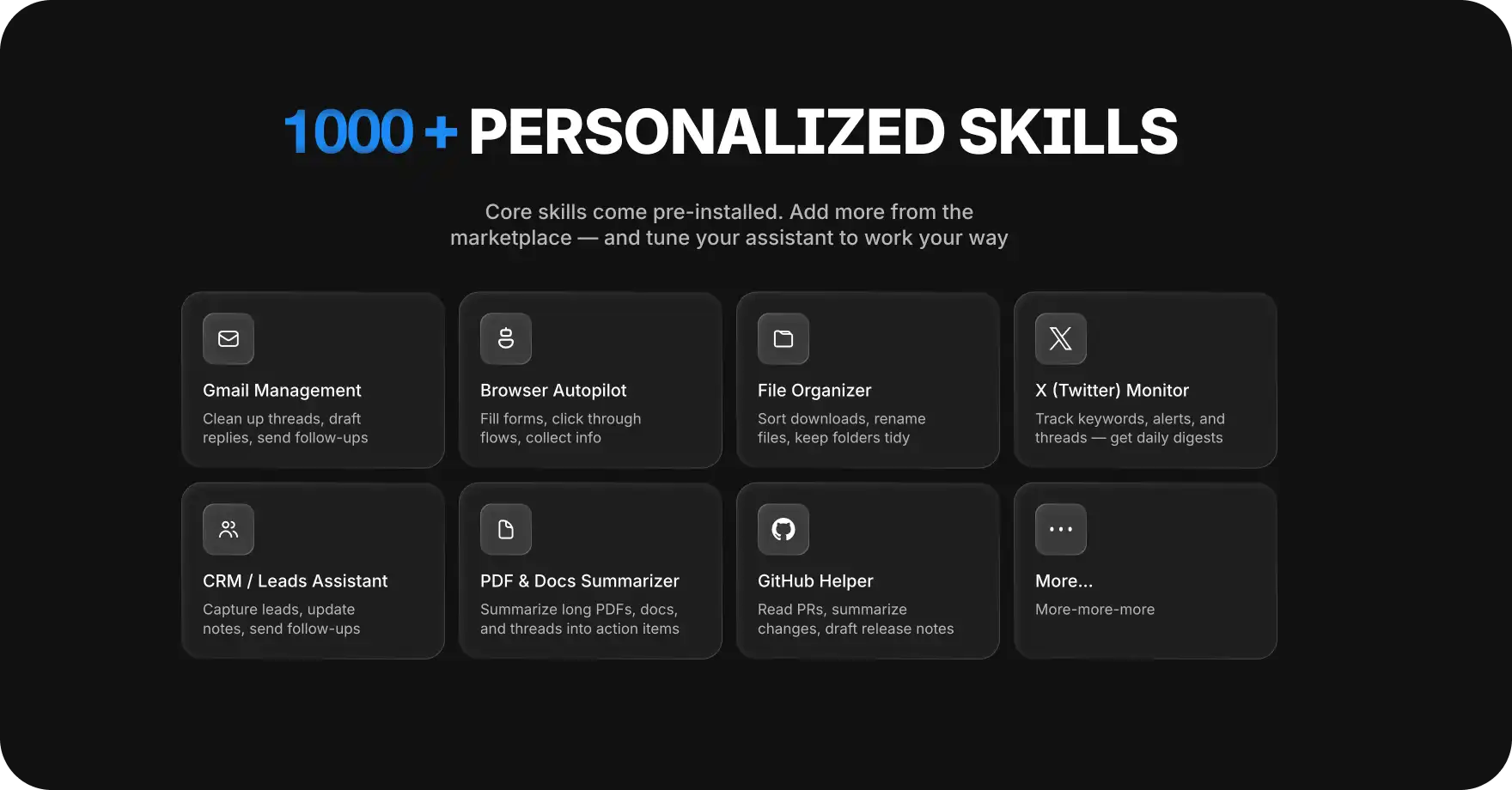
In Atomic Bot, skill installation is one click through the built-in skills menu, and over 1000 popular skills (including the ones we'll cover in this article) come pre-installed out of the box. For most users this means there's nothing to install at all — the skills you need are already sitting there waiting to be enabled.
If you're running OpenClaw manually, there are three other ways to add skills. ClawHub is the official marketplace and works from the terminal with clawhub install author/skill-name. Manual installation means downloading a skill folder directly into your OpenClaw workspace directory. Community repositories like awesome-openclaw-skills on GitHub curate hand-picked collections if you want recommendations from experienced users.
*Requires existing 1Password subscription.
🔍 Web Search — Your Agent's Eyes on the Internet
This is the single most impactful skill you can install. Without it, your agent is stuck reasoning from training data that's months or years old, which means it can't fact-check claims, look up current prices, or research anything that happened recently. If you only install one skill from this entire list, make it this one — the difference between an agent with web access and one without it is the difference between a research assistant and a party-trick chatbot.
What it does: Lets OpenClaw query search engines in real time and pull fresh results into its responses.
Who it's for: Everyone. There is no user profile that doesn't benefit from current information.
Why we recommend it: It's the one skill that fundamentally expands what your agent knows, rather than just what it can do.
How much it costs: $0–2/month depending on which search backend you connect (some have free tiers, others charge per query).
📧 GOG (Google Workspace) — Email, Calendar, and Drive in One Skill
GOG connects OpenClaw to Gmail, Google Calendar, and Google Drive through a single integration, which saves you from juggling three separate skills. Once connected, your agent can read and draft emails, check your schedule for conflicts, add events from natural language ("schedule a dentist appointment next Tuesday afternoon"), and pull files out of Drive when you reference them. This is the skill that turns OpenClaw from a curiosity into something that feels like a real assistant.
What it does: Connects your agent to Gmail, Google Calendar, and Google Drive through a single OAuth flow.
Who it's for: Anyone who runs their personal or work life on Google Workspace.
Why we recommend it: It replaces three separate integrations with one, and it covers the daily tasks people actually want an assistant for.
How much it costs: $0. Google's free API tier is more than enough for personal use.
📝 Summarize — Turn Long Content into Key Points
Paste a URL, an article, or a 50-message email thread, and Summarize gives you the key points in seconds. It's one of the most practical everyday skills, especially for anyone who deals with research papers, long meeting notes, or industry reports. There's no API cost because it runs on the same LLM you're already using for OpenClaw itself.
What it does: Compresses long content (articles, threads, PDFs, transcripts) into structured key points on demand.
Who it's for: Knowledge workers, students, researchers, and anyone who reads more than they have time for.
Why we recommend it: It pays for itself the first time you use it on a 40-page report you didn't want to read.
How much it costs: $0. It runs on whatever LLM you've already configured for OpenClaw.
🌤️ Weather — Surprisingly Useful for a Daily Briefing
Weather sounds basic, but the moment you set up a morning briefing routine you'll notice how much it adds. Your agent can include today's forecast, flag severe weather alerts before they hit, and add "bring an umbrella" reminders without you asking. Setup is zero-config and there's no cost.
What it does: Pulls current conditions, forecasts, and severe weather alerts for any location your agent asks about.
Who it's for: Anyone who runs a morning briefing or commutes outdoors.
Why we recommend it: It costs nothing, takes nothing to set up, and quietly makes your daily briefing meaningfully more useful.
How much it costs: $0. The default backend uses a free public API.
💬 Telegram — Talk to Your Agent from Anywhere
Telegram isn't a skill in the traditional sense — it's a channel integration that lets you message your OpenClaw agent from your phone the same way you'd text a friend. This is what makes OpenClaw feel like it's actually with you instead of trapped on your laptop, and it's the integration that most users say they couldn't live without after a week. WhatsApp, iMessage, and Discord work the same way if you prefer those.
What it does: Turns your OpenClaw agent into a chat contact you can message from any device with Telegram installed.
Who it's for: Anyone who wants to talk to their agent away from their desk.
Why we recommend it: It's the integration that changes OpenClaw from a desktop tool into a personal assistant you carry around.
How much it costs: $0. Telegram bots are free and have no message limits for personal use.
🏠 Home Assistant — Control Your Smart Home with AI
If you already run Home Assistant for your smart home, this skill lets you control every connected device through natural language. Saying "turn off the living room lights" or "set the thermostat to 21°C when I leave the house" replaces the fiddly automation rules you'd otherwise build by hand. It's the closest thing to a real Jarvis setup that exists today on consumer hardware.
What it does: Connects OpenClaw to your Home Assistant instance so the agent can read sensor states and control devices.
Who it's for: Smart home enthusiasts who already have Home Assistant running.
Why we recommend it: It replaces brittle automation rules with natural language and makes voice-style control work without proprietary speakers.
How much it costs: $0. The skill is free and Home Assistant itself is open-source.
📓 Obsidian — AI-Powered Note Management
Obsidian lets your agent read, create, search, and organize notes inside your existing vault. The killer use case is asking questions like "what did I write about project X last month?" and getting an instant answer with the relevant notes pulled up. If you use Obsidian as a second brain, this skill turns that second brain into something you can actually have a conversation with.
What it does: Gives your agent read and write access to your Obsidian vault, including search across all notes.
Who it's for: Obsidian users who treat their vault as a second brain.
Why we recommend it: It's the difference between a folder of notes you wrote once and a knowledge base you can interrogate.
How much it costs: $0. Obsidian is free for personal use and the skill itself adds no cost.
📰 BlogWatcher — Stay Updated Without Doomscrolling
BlogWatcher monitors RSS feeds and blogs you care about, then sends you a summary of what's new instead of forcing you to check 15 websites every morning. Set it up once, pick your sources, and your agent quietly handles the rest. It's a quiet productivity win that compounds over time.
What it does: Polls RSS feeds and websites on a schedule and delivers digests of new content through your chosen channel.
Who it's for: People who follow industry news, niche blogs, or research feeds and want to stop doomscrolling.
Why we recommend it: It moves you from constant feed-checking to a single curated daily digest.
How much it costs: $0–1/month. Free for most setups; small cost only if you're polling hundreds of sources frequently.
🔐 1Password — Secure Access for Your Agent
When your agent needs API keys or service credentials to do its job, 1Password keeps them out of plain-text config files where they don't belong. This is more of a "good habit" than a glamorous feature, but adopting it early prevents the kind of security mess that happens when you've spread credentials across a dozen scripts. If you already pay for 1Password, there's nothing extra to spend.
What it does: Lets OpenClaw fetch API keys and credentials from your 1Password vault instead of storing them in config files.
Who it's for: Anyone who already uses 1Password and plans to connect OpenClaw to multiple services.
Why we recommend it: It's the difference between secure credential handling and a folder of plain-text secrets you'll regret later.
How much it costs: $0 if you already have a 1Password subscription. The skill itself is free.
❓ FAQ
Are OpenClaw skills safe?
Most skills are open-source and community-reviewed, and ClawHub has been running automatic VirusTotal scans on every submission since February 2026. That said, you should still review the permissions a skill requests before installing anything from an unfamiliar author.
How many skills should I install?
Start with two or three and add more only when you've actually felt the gap. Installing ten skills on day one makes it impossible to tell which ones are doing useful work and which ones are sitting idle.
Can I create my own skill?
Yes. A skill is just a folder containing a SKILL.md file with instructions written in plain English, and no coding is required to build a basic one.
Do skills slow OpenClaw down?
Installed skills sit dormant until the agent decides to use one, so they don't add latency to ordinary chat. The only slowdown comes from the skill itself when it runs — a web search adds a second or two, a long summarization adds more.
Can I install skills without using the terminal?
Yes. Atomic Bot includes a graphical skills menu where installation is a single click, and over 100 popular skills are pre-installed out of the box. The terminal-based ClawHub workflow is only necessary if you're running a manual OpenClaw setup.
What happens if a skill breaks?
Disable it from your skills menu and OpenClaw will fall back to working without it. Skills are isolated from each other, so a broken one won't take down the rest of your setup.
Once you’ve installed the core skills and hit their limits, the next step is deciding whether OpenClaw should run alone or alongside another agent — for example, Hermes.